Free AI Flowchart Generator
Create flowcharts free — drag-and-drop, paste Mermaid code (TD, LR, BT, RL), or describe your process to AI. No signup, no login, no watermark. Export as PNG or SVG.
Try These Examples
Mermaid Flowchart Support
Paste Mermaid syntax and we render it instantly. Full support for all four flowchart directions, every standard shape, subgraphs, and styling.
All four directions supported
Top-down (flowchart TD or flowchart TB)
flowchart TD
    A[Start] --> B{Approved?}
    B -->|Yes| C[Process payment]
    B -->|No| D[Send rejection email]
    C --> E[End]
    D --> E
Left-to-right (flowchart LR)
flowchart LR
    A[Receive request] --> B[Validate] --> C[Process] --> D[Respond]
Bottom-up (flowchart BT)
flowchart BT
    A[Production] --> B[Staging]
    B --> C[Development]
Right-to-left (flowchart RL)
flowchart RL
    A[Customer] --> B[Order placed]
    B --> C[Inventory checked]
    C --> D[Shipped]
Shape syntax cheatsheet
| Shape | Syntax | Use |
|---|---|---|
| Rectangle | A[text] | Process / action |
| Round rectangle | A(text) | Soft action |
| Stadium / pill | A([text]) | Start / end |
| Subroutine | A[[text]] | Predefined process |
| Cylinder | A[(text)] | Database / storage |
| Circle | A((text)) | Connector |
| Diamond | A{text} | Decision point |
| Hexagon | A{{text}} | Preparation |
| Parallelogram | A[/text/] | Input / output |
| Trapezoid | A[/text\] | Manual operation |
Arrow syntax cheatsheet
| Arrow | Syntax | Meaning |
|---|---|---|
| Solid arrow | A --> B | Standard flow |
| Open arrow | A --- B | Line, no arrowhead |
| Dotted arrow | A -.-> B | Optional / asynchronous |
| Thick arrow | A ==> B | Primary path |
| Labeled arrow | A -->|Yes| B | Conditional / labeled |
| Circle endpoints | A o--o B | Bidirectional |
| Cross endpoints | A x--x B | Blocked / failed |
Subgraphs
Group related steps inside a labeled container — useful for showing backend vs. frontend, or before vs. after sub-flows.
flowchart TD
    A[User submits form] --> B
    subgraph Backend
        B[Validate data] --> C[Save to database]
        C --> D[Send confirmation email]
    end
    D --> E[Show success page]
Styling
Apply colors and emphasis with classDef and the :::className suffix.
flowchart TD
    A[Start]:::important --> B[End]
classDef important fill:#f96,stroke:#333,stroke-width:2px;What is a Flowchart?
A flowchart is a visual diagram that shows the steps in a process using shapes and arrows. Rectangles represent actions, diamonds represent decisions, and arrows show the flow from one step to the next.
Flowcharts make complex processes easy to understand. Whether you're documenting a business workflow, explaining how software works, planning a project, or making decisions, a well-designed flowchart communicates your ideas clearly.
Our free flowchart generator lets you create these diagrams quickly without installing any software. Just drag shapes onto the canvas, add your text, connect the steps, and download your finished flowchart.
Want it even faster? Our AI flowchart generator creates diagrams automatically from plain text descriptions.
Flowchart Examples
See what you can create. These examples show different flowchart styles and use cases.
Login Authentication Flow
This flowchart maps user authentication with password validation, error handling, and session creation.
Customer Support Process
A support workflow showing how tickets move from submission through categorization to resolution.
E-commerce Checkout Flow
Standard online purchase flow with inventory checks, payment processing, and order confirmation.
Bug Triage Decision Tree
Development team workflow for categorizing and assigning reported issues based on impact and urgency.
Content Approval Workflow
Editorial process showing content moving through review stages with feedback loops and final approval.
Account Registration Process
New user onboarding flow covering account creation, email verification, and initial setup steps.
All examples created with our AI flowchart generator. Describe your process and create similar diagrams instantly.
Try AI Generator →Yes/No & Algorithm Flowchart Examples
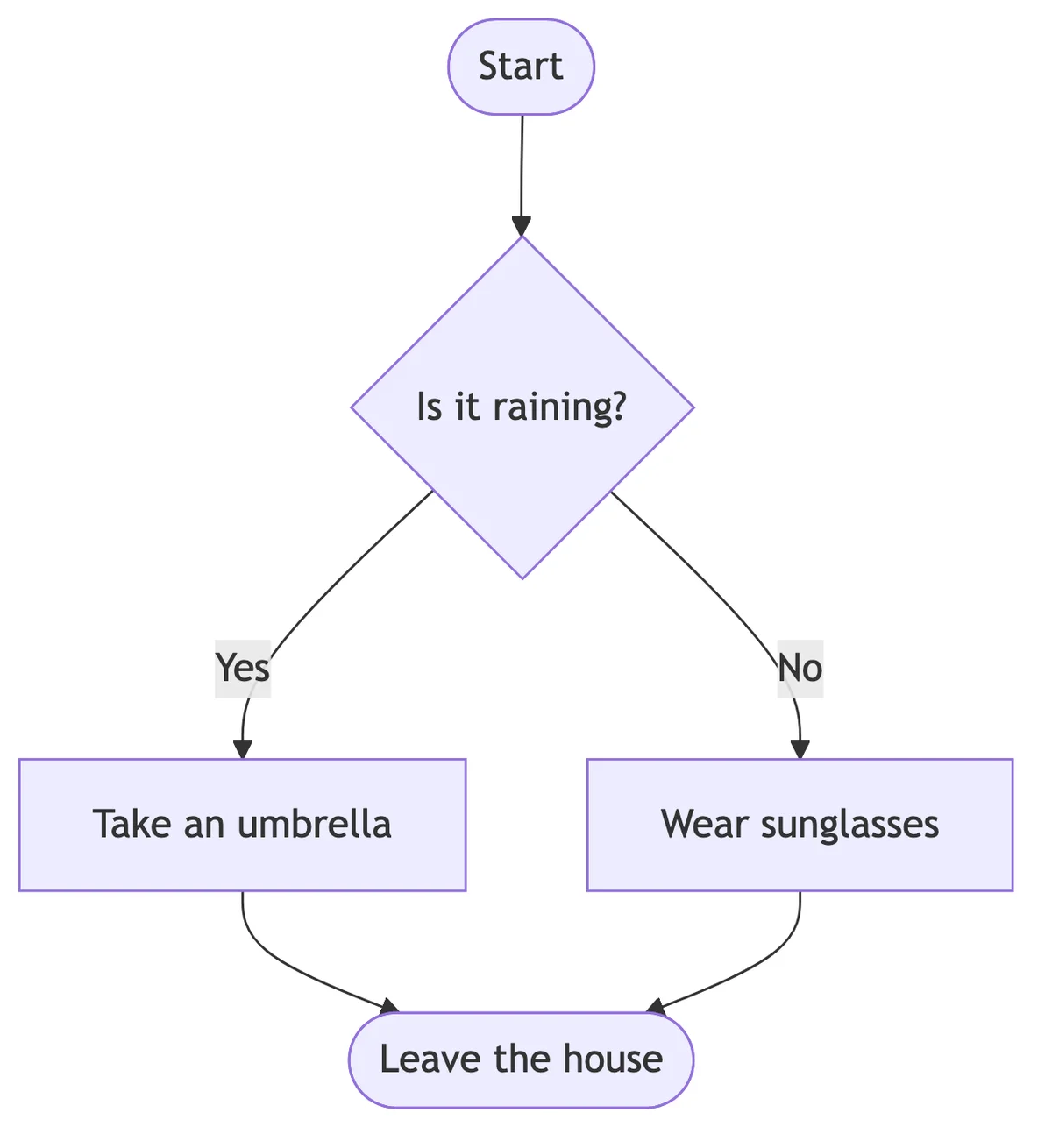
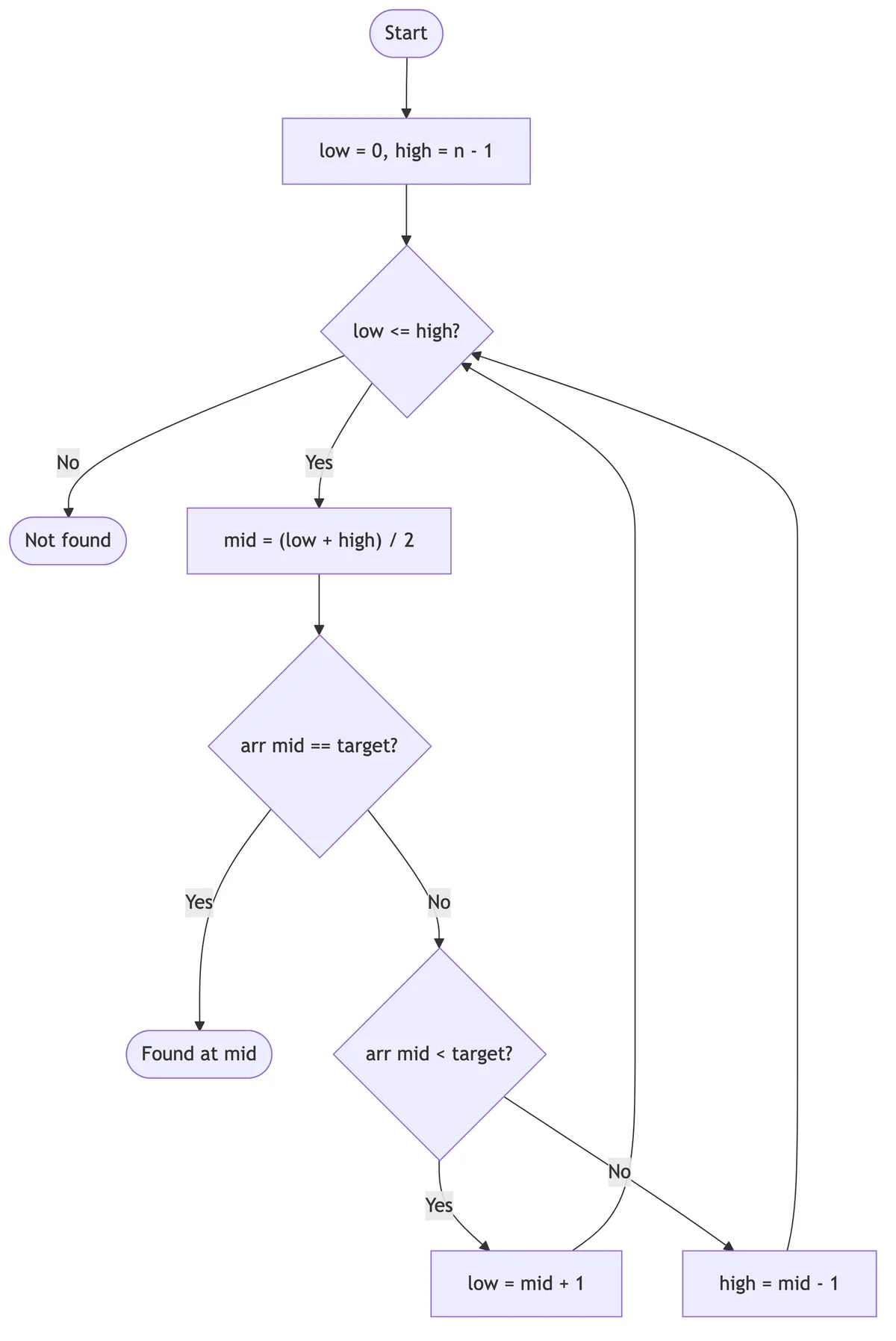
Two more ready-made flowcharts you can generate: a simple yes/no decision flow and an algorithm flowchart.
Flowchart Templates
Start faster with ready-made templates. Choose a template below and customize it for your needs.
Map standard business workflows like approvals, reviews, and handoffs. Includes decision points and multiple endpoints.
Use This Template →Guide users through yes/no choices to reach the right outcome. Perfect for troubleshooting guides and diagnostic flows.
Use This Template →Document how users move through your app or website. Shows screens, actions, and navigation paths.
Use This Template →Visualize new employee or customer onboarding steps. Covers documentation, training, and milestone checkpoints.
Use This Template →Illustrate programming logic and conditional statements. Standard format for computer science documentation.
Use This Template →Track requests through review and approval stages. Includes rejection paths and escalation routes.
Use This Template →Need something custom? Describe your process to our AI and get a tailored flowchart in seconds.
Try AI Generator →How to Create a Flowchart
Making a flowchart is simple with our free online tool. Follow these steps to create your diagram in minutes.
Add Your Shapes
Start by dragging flowchart shapes onto the canvas. Use rectangles for process steps, diamonds for decision points, and ovals for start and end points. Position them in the order your process flows.
Connect the Steps
Draw arrows between shapes to show how the process moves from one step to the next. For decision points, add multiple arrows to show different paths based on yes/no or other conditions.
Add Your Text
Click on each shape to add labels describing what happens at that step. Keep text short and action-oriented — for example, "Review application" or "Send confirmation email."
Download Your Flowchart
When you're happy with your diagram, download it as an image. Use it in presentations, documents, websites, or anywhere you need to explain a process visually.
Why Use Our Free Flowchart Generator?
No account needed, no email verification, no passwords to remember. Your flowchart tool is ready the moment you land on this page. Privacy-friendly and hassle-free.
If you can drag and drop, you can make a flowchart. Our simple interface makes it easy to add shapes, move them around, and connect steps. No learning curve, no complicated menus.
Access all the standard flowchart shapes: rectangles for processes, diamonds for decisions, ovals for terminators, parallelograms for input/output, and more. Create diagrams that follow universal conventions.
How it works:
- Describe your process in plain text (e.g., "Customer places order, system checks inventory, if in stock ship immediately, if not notify customer of delay")
- Click generate
- AI creates a complete flowchart with proper shapes, connections, and labels
Why try AI generation:
- Create flowcharts in seconds, not minutes
- AI understands your process and structures it logically
- Perfect for quick drafts or when you're not sure where to start
- High-resolution output with crystal-clear text
AI generation uses credits. New users get free trial credits to experience the feature.
What Can You Create?
Our flowchart generator works for any process you need to visualize. Here are some popular uses:
Business Processes
Document workflows like employee onboarding, customer support procedures, approval chains, or order fulfillment. Clear process flowcharts help teams work consistently and efficiently.
Software & Algorithms
Map out program logic, user flows, or decision trees before coding. Developers use flowcharts to plan systems and communicate technical concepts to non-technical team members.
Decision Making
Create decision flowcharts that guide users through complex choices. Perfect for troubleshooting guides, diagnostic procedures, or any scenario with multiple possible paths.
Education & Training
Teachers and trainers use flowcharts to explain processes, scientific concepts, and step-by-step procedures. Visual diagrams improve comprehension and make learning materials more engaging.
Flowchart Symbols and Their Meanings
Flowcharts use standard shapes that have specific meanings. Understanding these symbols helps you create diagrams that others can easily read.
Rectangle (Process)
Represents an action or step in the process. Examples: "Send email," "Calculate total," "Review document."
Diamond (Decision)
Indicates a point where the flow branches based on a condition. Typically has yes/no or true/false outputs. Examples: "Is payment received?" "Approved?"
Oval (Terminator)
Marks the start or end of a process. Every flowchart should have at least one start and one end point.
Parallelogram (Input/Output)
Represents data entering or leaving the process. Examples: "Enter username," "Display results," "Print report."
Arrow (Flow Line)
Shows the direction of the process flow, connecting shapes in sequence.
Rectangle with Double Lines (Subprocess)
Indicates a predefined process or subroutine that's detailed elsewhere.
Frequently Asked Questions
Start Creating Your Flowchart
Our free flowchart generator is ready when you are. No downloads, no signup, no cost — just scroll up and start building your diagram.
Need it faster? Let AI do the work. Describe your process in plain text and get a professional flowchart in seconds.